> ## Documentation Index
> Fetch the complete documentation index at: https://statsig-4b2ff144-mintlify-add-local-eval-country-note-96362.mintlify.site/llms.txt
> Use this file to discover all available pages before exploring further.
# Redshift Connection
## Overview
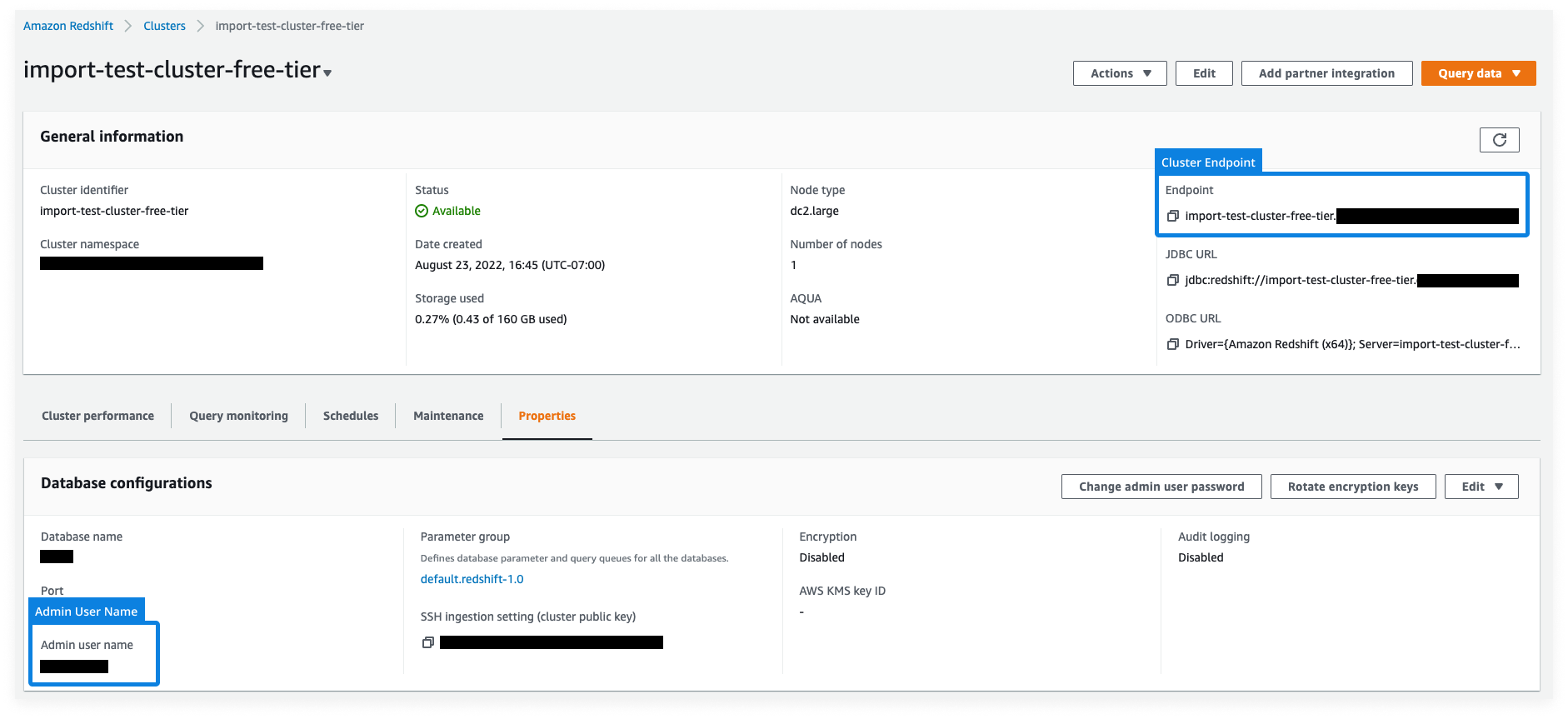
To set up connection with Redshift, Statsig needs the following information
* Cluster Endpoint
* A service user Username
* A service user Password
* A staging schema that Statsig can write results to
SHA256 passwords are not currently supported, please utilize MD5 to avoid
issues.
You can find this information in your aws console within your specific cluster, as shown in the image below. (Open image in new tab for a bigger image). The service user should be able to read necessary experiment data, and be able to write to the Statsig staging schema you specify.
 When you save the connection, we will run a series of tiny commands to test permissions -- e.g. creating a temp table, running a select/delete statement on that table, and then dropping that table.
The provided Service Account will require the following attributes:
`enable_case_sensitive_identifier`, `enable_case_sensitive_super_attribute`.
If these are not already set, Statsig will set them to TRUE upon setup
completion.
## SSH Tunneling
For Redshift connections, we also allow users to create an SSH tunnel into their Redshift cluster for a more secure and private access to the database.
To enable access, Statsig requires:
* SSH Host
* SSH Port
* SSH User
Statsig will use this information to generate an SSH key. Please add this generated key to your `~/.ssh/authorized_keys` file on your SSH proxy machine to enable SSH tunneling.
### What IP addresses will Statsig access data warehouses from?
[See FAQ](/data-warehouse-ingestion/faq#what-ip-addresses-will-statsig-access-data-warehouses-from)
### Additional Setup for Warehouse Explorer
Warehouse Explorer makes it easy to find and bring data from any table into Statsig for ad-hoc analysis.
To enable the Warehouse Explorer analytics feature, you may need to provide Statsig with additional permission to query the `pg_table_def` metadata. Only schemas that Statsig has read access to will be included in query results. A superuser or admin can grant access to read additional relevant schemas and table metadata in `pg_table_def` by running
```sql theme={null}
GRANT USAGE ON SCHEMA TO ;
GRANT SELECT ON ALL TABLES IN SCHEMA TO ;
```
`` should be the service user username that you provided to Statsig above. `` is the name of the schema you'd like to see included in Warehouse Explorer results
When you save the connection, we will run a series of tiny commands to test permissions -- e.g. creating a temp table, running a select/delete statement on that table, and then dropping that table.
The provided Service Account will require the following attributes:
`enable_case_sensitive_identifier`, `enable_case_sensitive_super_attribute`.
If these are not already set, Statsig will set them to TRUE upon setup
completion.
## SSH Tunneling
For Redshift connections, we also allow users to create an SSH tunnel into their Redshift cluster for a more secure and private access to the database.
To enable access, Statsig requires:
* SSH Host
* SSH Port
* SSH User
Statsig will use this information to generate an SSH key. Please add this generated key to your `~/.ssh/authorized_keys` file on your SSH proxy machine to enable SSH tunneling.
### What IP addresses will Statsig access data warehouses from?
[See FAQ](/data-warehouse-ingestion/faq#what-ip-addresses-will-statsig-access-data-warehouses-from)
### Additional Setup for Warehouse Explorer
Warehouse Explorer makes it easy to find and bring data from any table into Statsig for ad-hoc analysis.
To enable the Warehouse Explorer analytics feature, you may need to provide Statsig with additional permission to query the `pg_table_def` metadata. Only schemas that Statsig has read access to will be included in query results. A superuser or admin can grant access to read additional relevant schemas and table metadata in `pg_table_def` by running
```sql theme={null}
GRANT USAGE ON SCHEMA TO ;
GRANT SELECT ON ALL TABLES IN SCHEMA TO ;
```
`` should be the service user username that you provided to Statsig above. `` is the name of the schema you'd like to see included in Warehouse Explorer results