> ## Documentation Index
> Fetch the complete documentation index at: https://statsig-4b2ff144-mintlify-add-local-eval-country-note-96362.mintlify.site/llms.txt
> Use this file to discover all available pages before exploring further.
# Mixpanel
## Overview
The [Mixpanel](https://mixpanel.com/) integration has two functions.
* Incoming: Statsig can sync your Mixpanel user cohorts with a Statsig ID list segment.
* Outgoing: Statsig can forward Statsig events to Mixpanel.
## Cohort Syncing
Statsig can ingest user information via a [Mixpanel Cohort Syncing](https://developer.mixpanel.com/docs/cohort-webhooks)
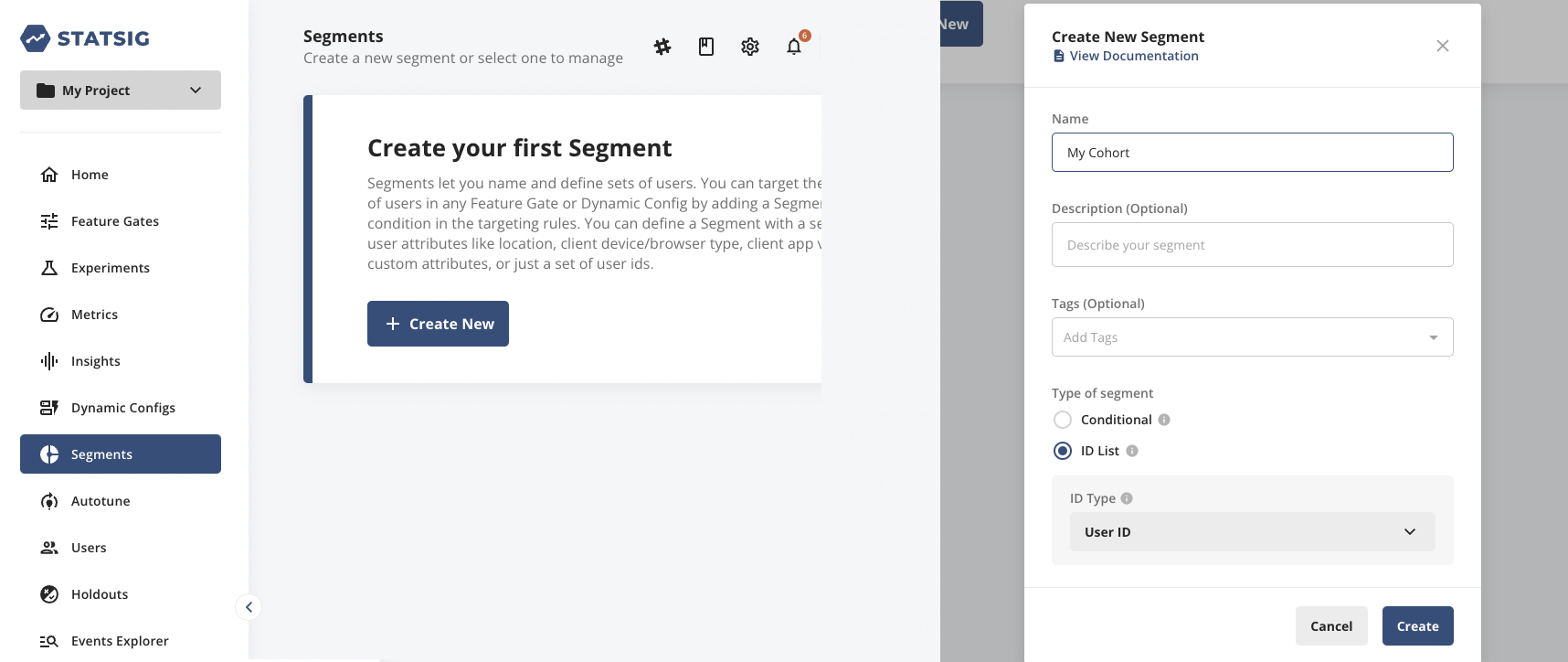
1. On Statsig, navigate to Segments on the left navigation menu and create a segment.
* **Name**: Must match the name of your Mixpanel cohort.
* **Type of segment**: Should be ID List.
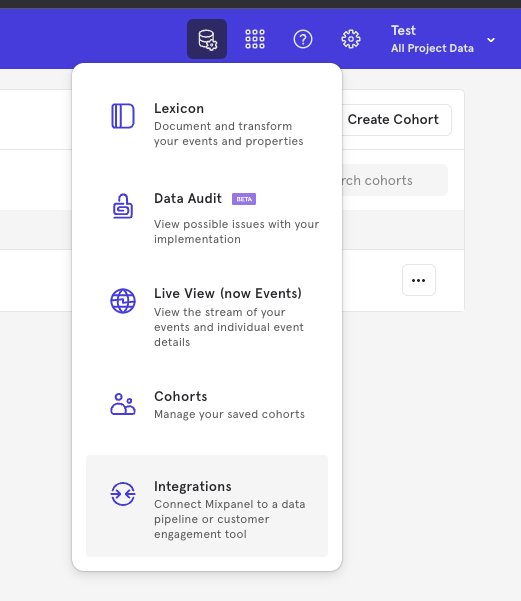
 2. On Mixpanel, click on the Data Management navbar item and choose Integrations from
the dropdown.
2. On Mixpanel, click on the Data Management navbar item and choose Integrations from
the dropdown.
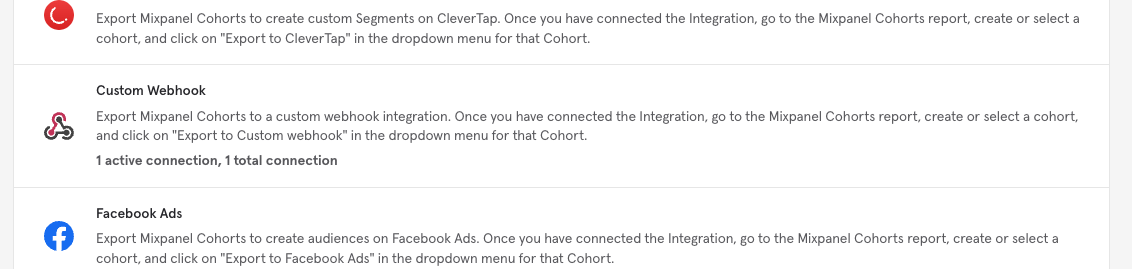
 3. In the list of integrations, scroll until you find Custom Webhook and then
select it.
3. In the list of integrations, scroll until you find Custom Webhook and then
select it.
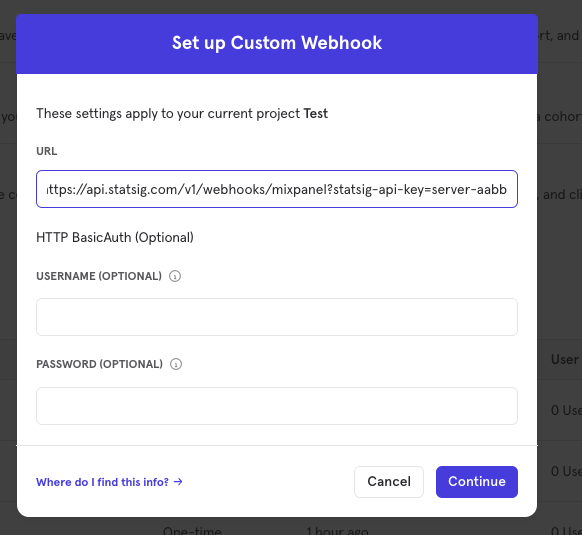
 4. In the dialog that appears, paste the url below, substituting the
SERVER\_SECRET\_KEY with a "Server Secret Key" found in [Project Settings](https://console.statsig.com/api_keys), then click Continue.
```
https://api.statsig.com/v1/webhooks/mixpanel?statsig-api-key=SERVER_SECRET_KEY
```
4. In the dialog that appears, paste the url below, substituting the
SERVER\_SECRET\_KEY with a "Server Secret Key" found in [Project Settings](https://console.statsig.com/api_keys), then click Continue.
```
https://api.statsig.com/v1/webhooks/mixpanel?statsig-api-key=SERVER_SECRET_KEY
```
 5. You can now kick off a cohort sync job on Mixpanel from the Cohorts page.
## Configuring Outbound Events
To export your Statsig events to Mixpanel:
1. Get a copy of your "Project Token" from Mixpanel by following this [guide](https://help.mixpanel.com/hc/en-us/articles/115004502806-Find-Project-Token-).
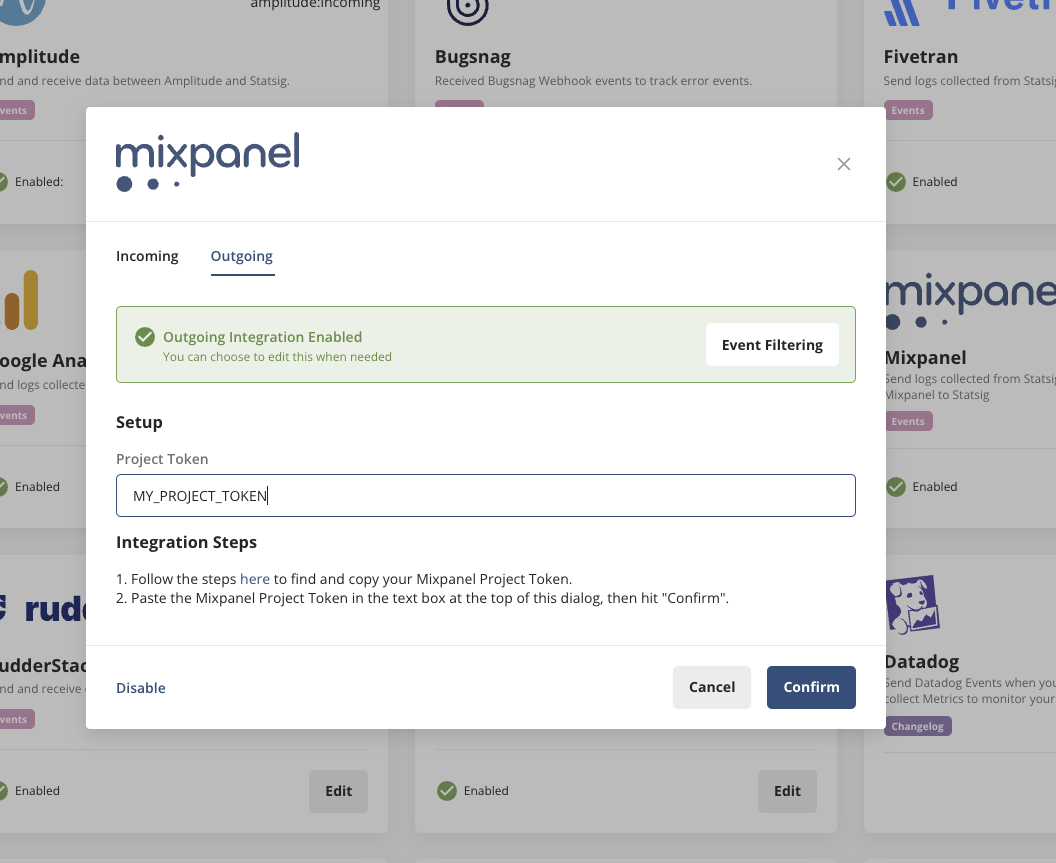
2. Paste your project token into the Outgoing configuration on the Statsig integration panel and hit "Enable" (or "Confirm" if you are updating the integration).
5. You can now kick off a cohort sync job on Mixpanel from the Cohorts page.
## Configuring Outbound Events
To export your Statsig events to Mixpanel:
1. Get a copy of your "Project Token" from Mixpanel by following this [guide](https://help.mixpanel.com/hc/en-us/articles/115004502806-Find-Project-Token-).
2. Paste your project token into the Outgoing configuration on the Statsig integration panel and hit "Enable" (or "Confirm" if you are updating the integration).
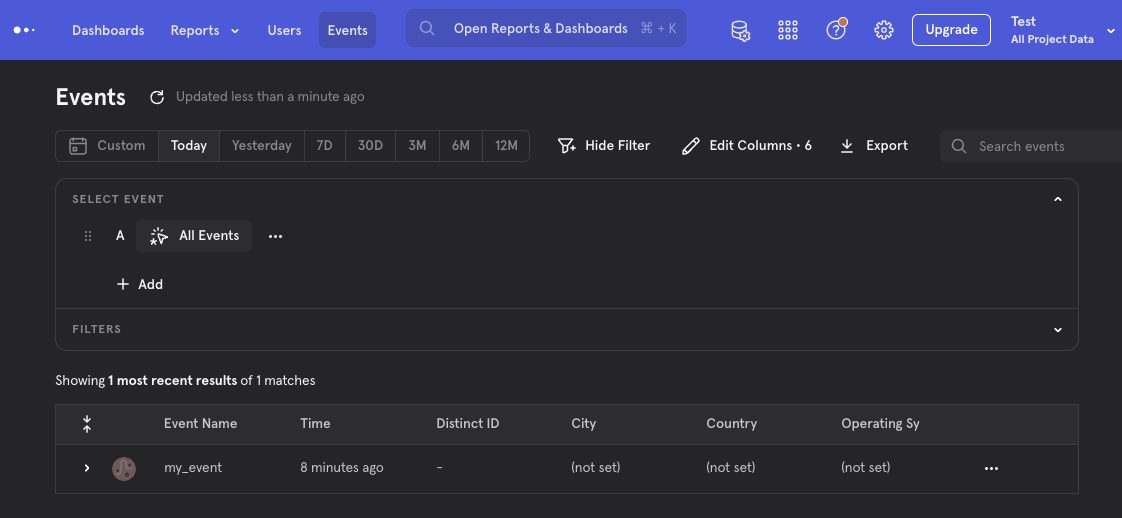
 3. Verify your events are being forward by visiting the Events tab on Mixpanel
 ### Filtering Events
You can customize which events should be sent to Mixpanel using [Event Filtering](/integrations/event_filtering#outgoing-event-filtering)
### Filtering Events
You can customize which events should be sent to Mixpanel using [Event Filtering](/integrations/event_filtering#outgoing-event-filtering)