> ## Documentation Index
> Fetch the complete documentation index at: https://statsig-4b2ff144-mintlify-add-local-eval-country-note-96362.mintlify.site/llms.txt
> Use this file to discover all available pages before exploring further.
# UI-Based Tool
You can follow this guide to use Statsig's built in LaunchDarkly migration tool. Please note that this UI-based tool only imports the "production" environment at the moment.
## What you need
Review the full checklist in the [LaunchDarkly Migration Guide](/guides/migrate-from-launchdarkly#what-you-need), then gather:
1. You will need your project key. Projects in LaunchDarkly have a Name (e.g. "My Mobile App") and a Key (e.g.my\_mobile\_app).
2. You'll need a read-only access token for this project. You can create one in LaunchDarkly -> Account Settings -> Authorization and limit scope to be read-only.
3. A Statsig project to use. We recommend trying this in a test project first.
## How it works
These screens mirror the [console walkthrough](/guides/migrate-from-launchdarkly#how-it-works):
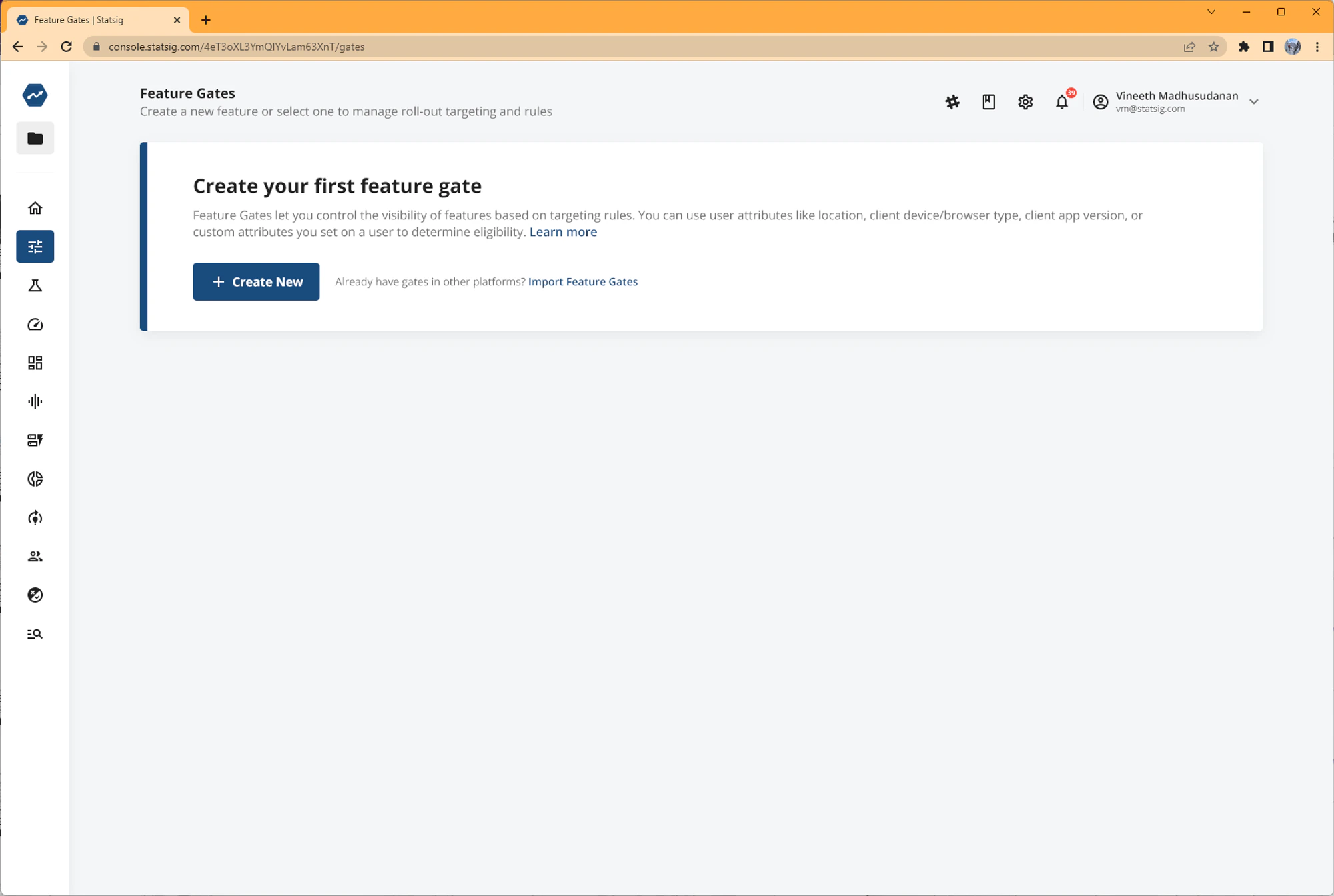
1. You will be prompted to Import Feature Gates if you don't have any feature gates in your project.
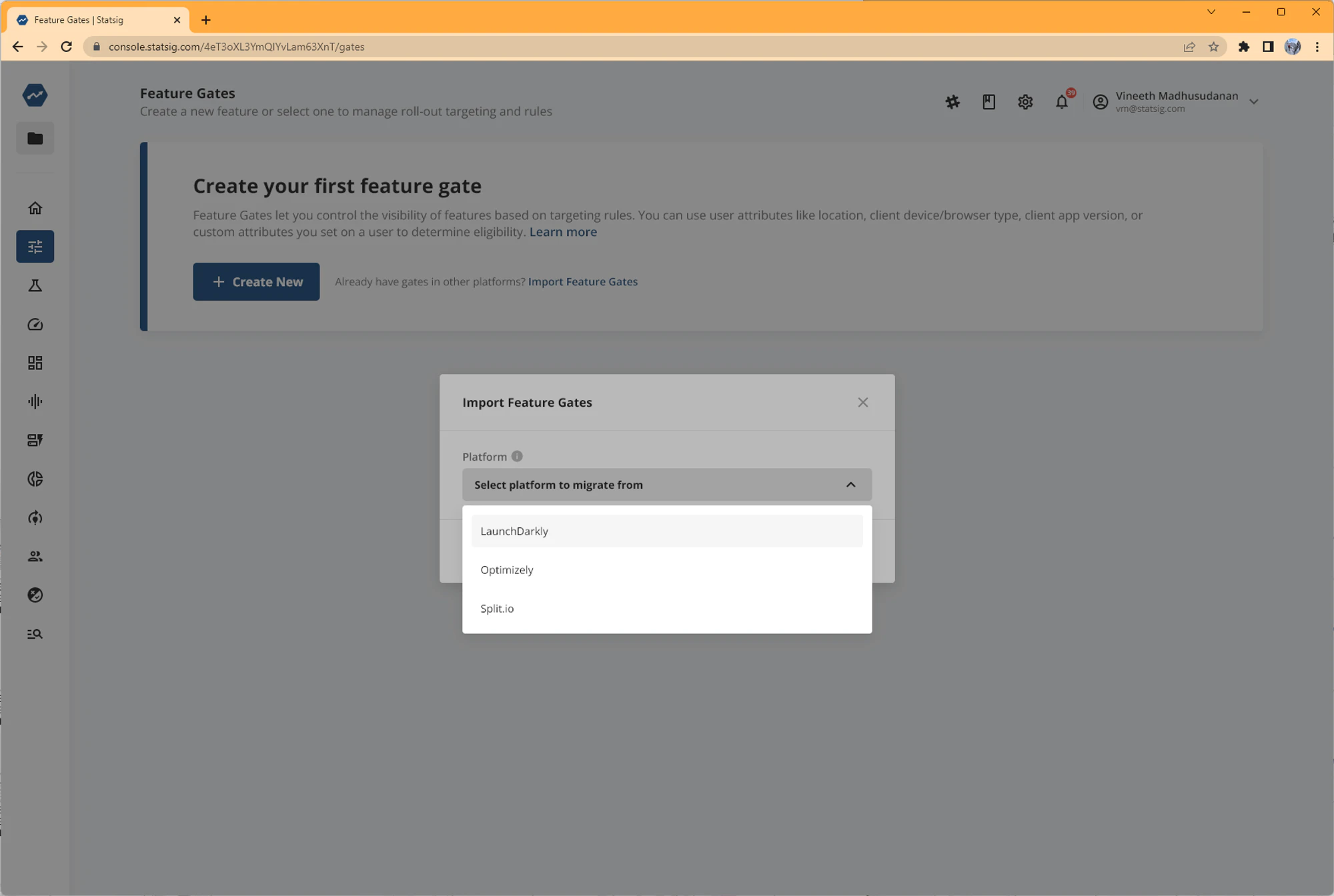
 2. Select LaunchDarkly as the platform you want to migrate from.
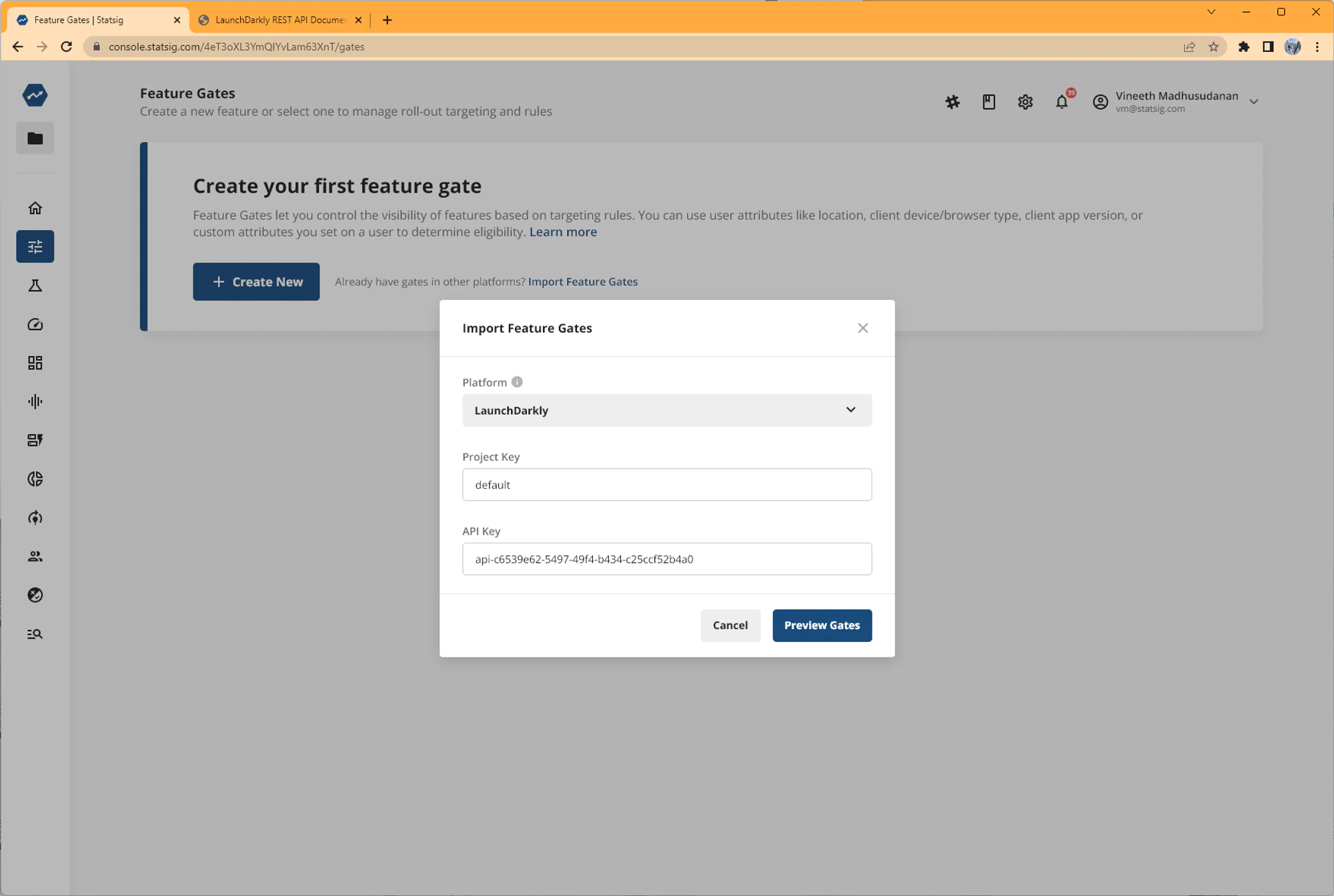
 3. Enter your LaunchDarkly Project Key and API Key/access token.
 4. Preview the migration summary. We'll highlight what gates we can and can't migrate. Gates we don't migrate include gates with segments (coming soon) and gates with non-Boolean flags.
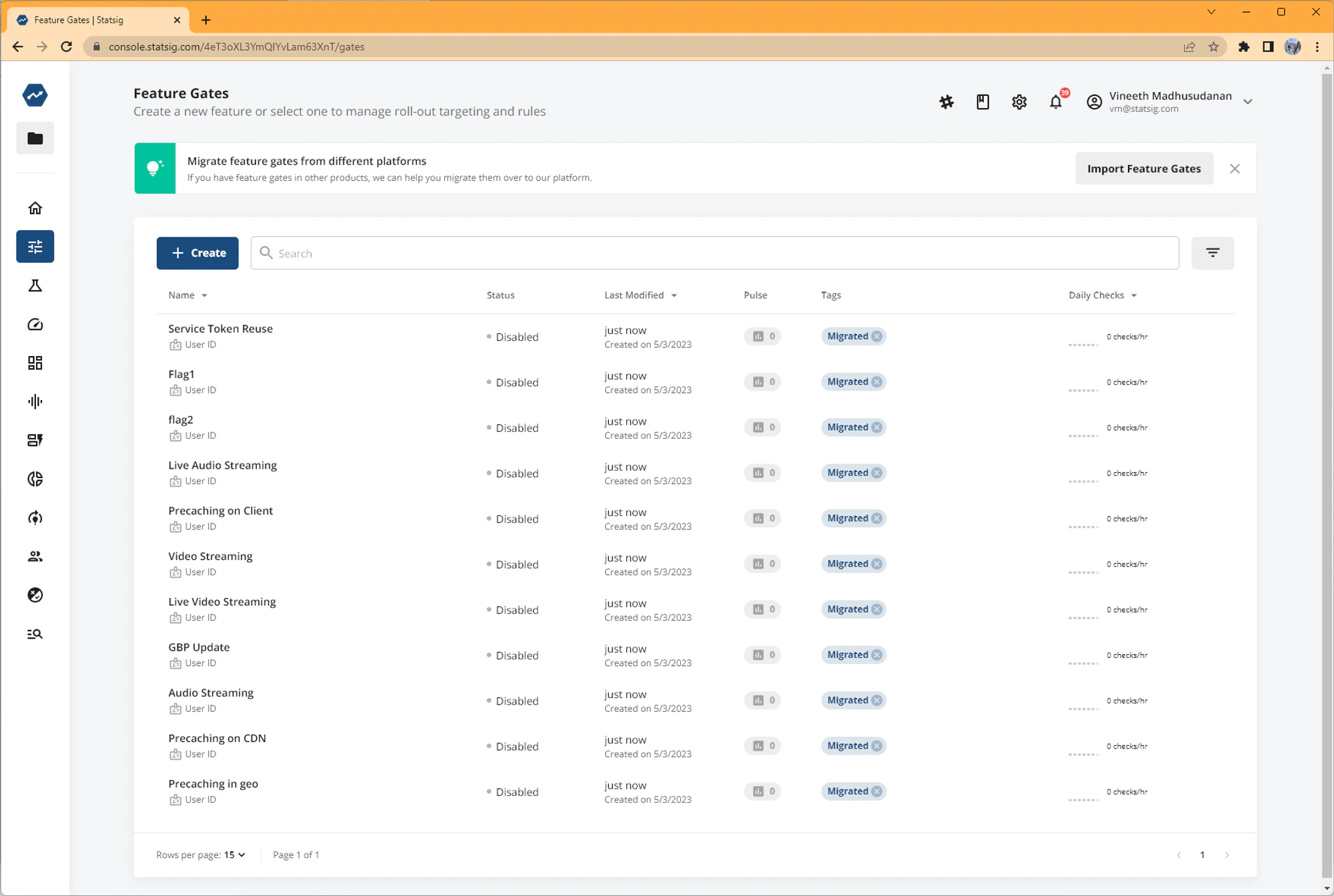
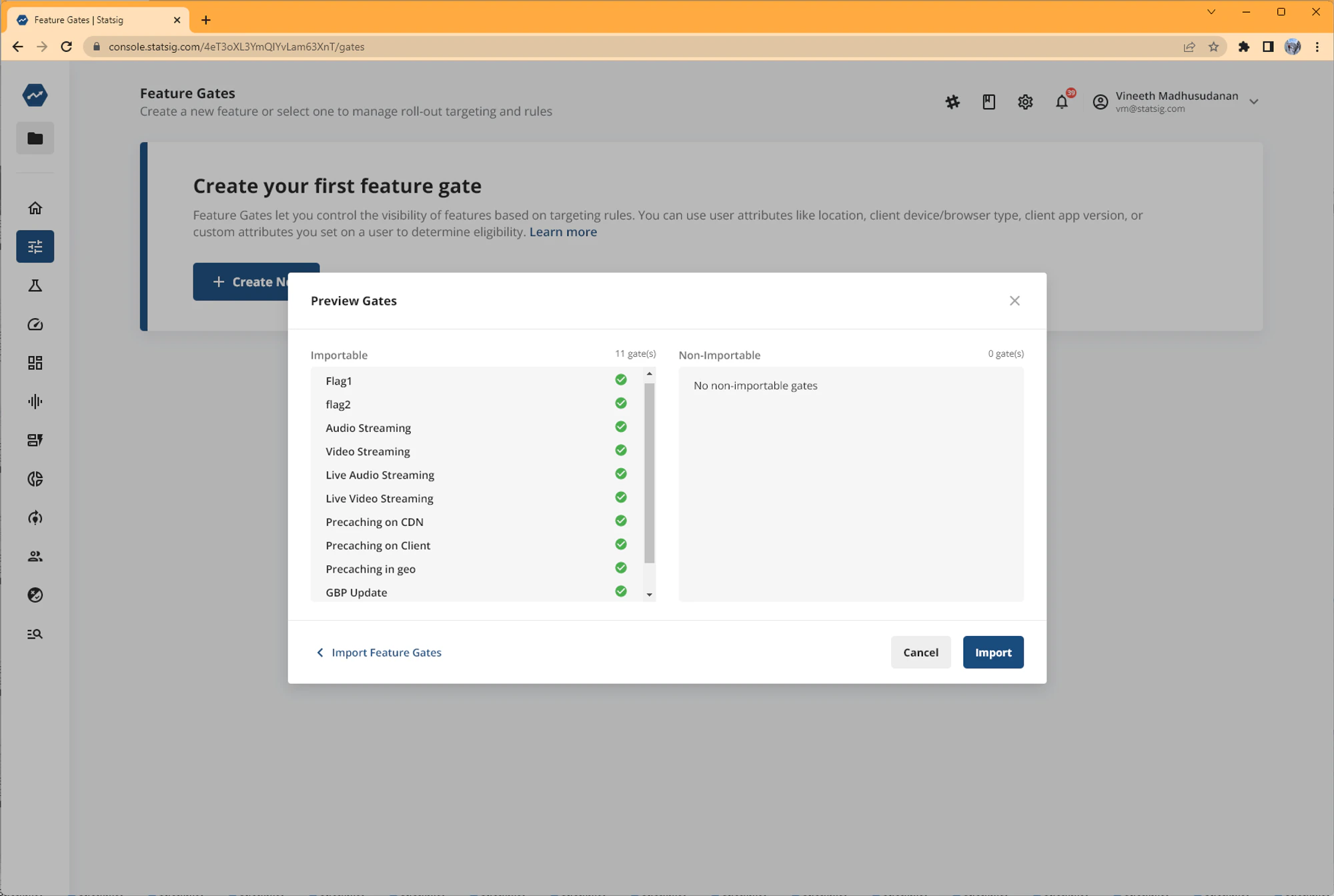 5. Finish migration of the gates. All your migrated gates will be tagged "Migrated" so you can identify them.