> ## Documentation Index
> Fetch the complete documentation index at: https://statsig-4b2ff144-mintlify-add-local-eval-country-note-96362.mintlify.site/llms.txt
> Use this file to discover all available pages before exploring further.
# Setting up Reviews for Team Workflows
You can enable reviews for all Statsig resources such as feature gates, dynamic configs, segments, and experiments that you'll likely deploy to a production environment.
### Turning on Change Reviews for a Project
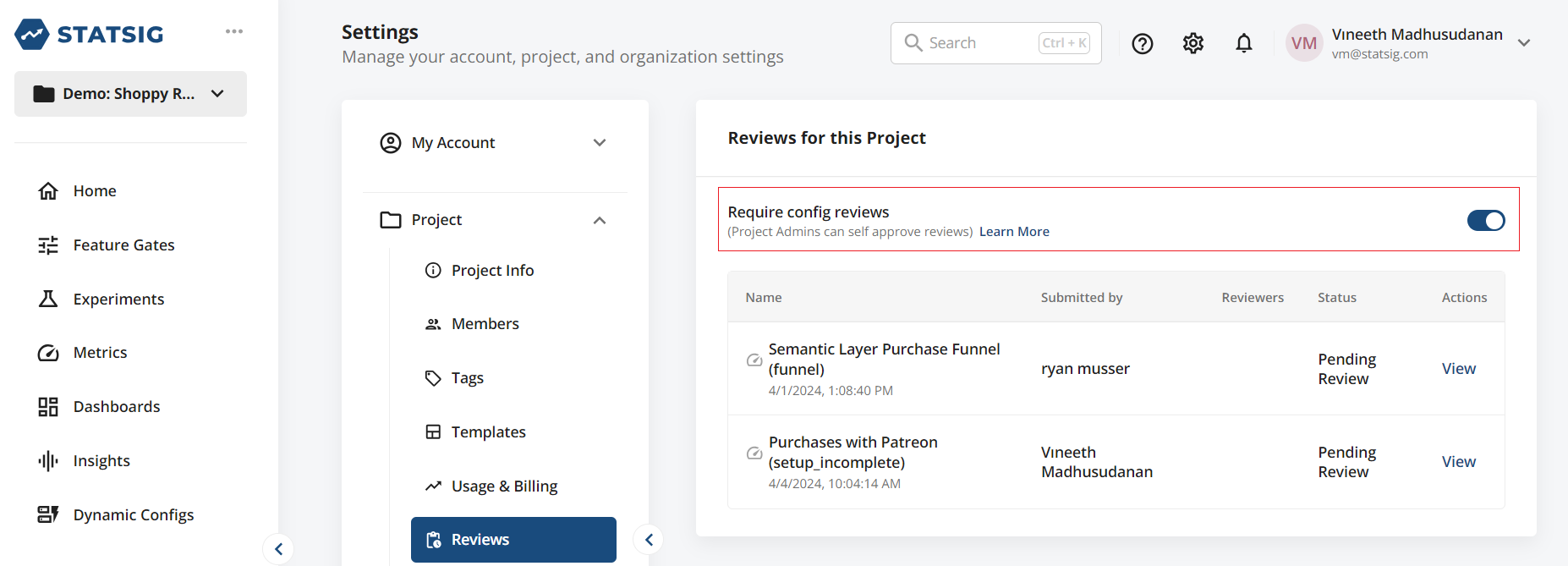
As a Project Admin, you can configure your project to require reviews for any changes. To enable reviews for your project, navigate to the **Project Settings** page, switch to the Reviews tab and toggle this on.
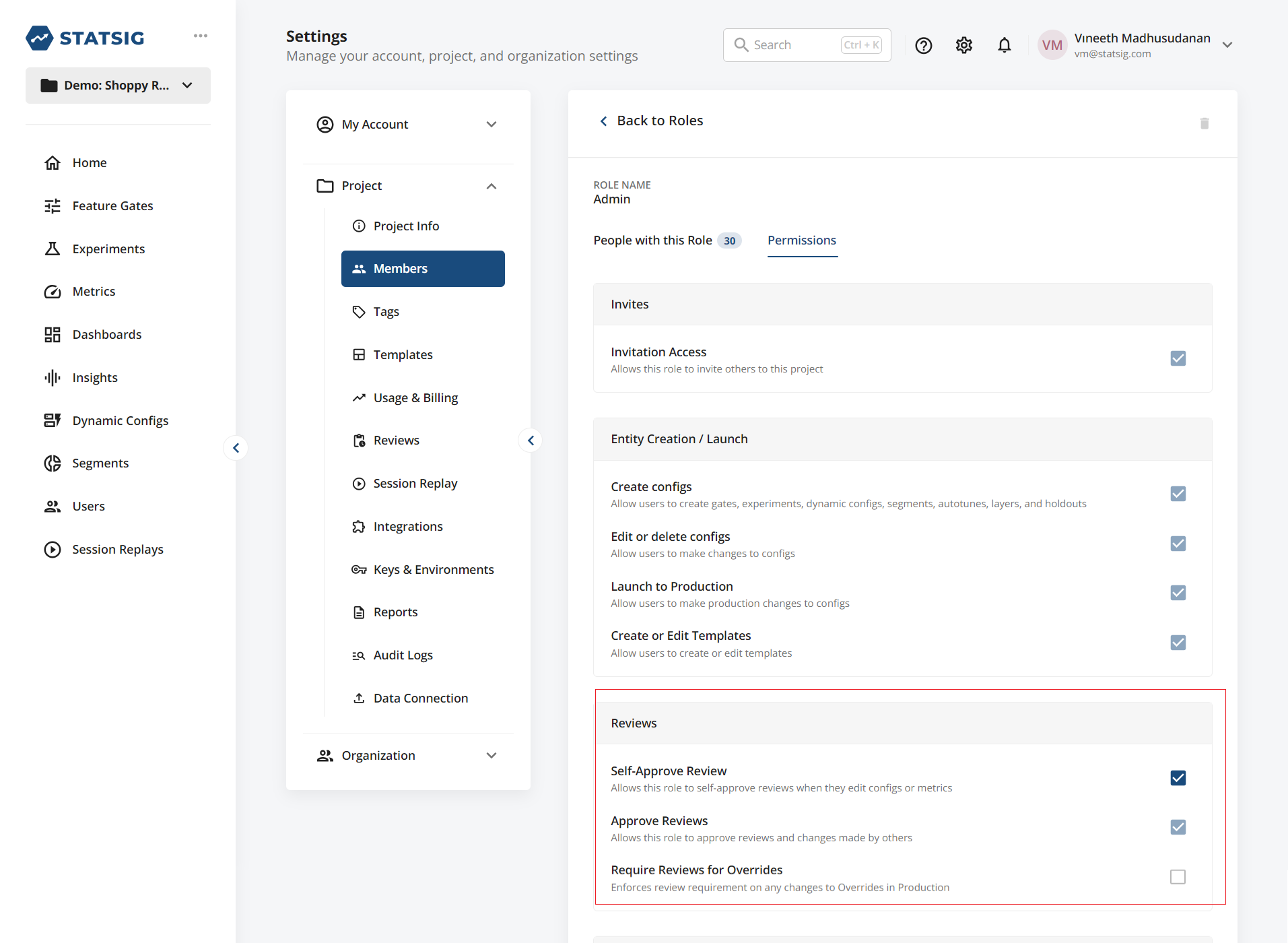
 * You can optionally allow different roles to bypass the review requirement and self-approve review requests by customizing the permissions available to user roles:
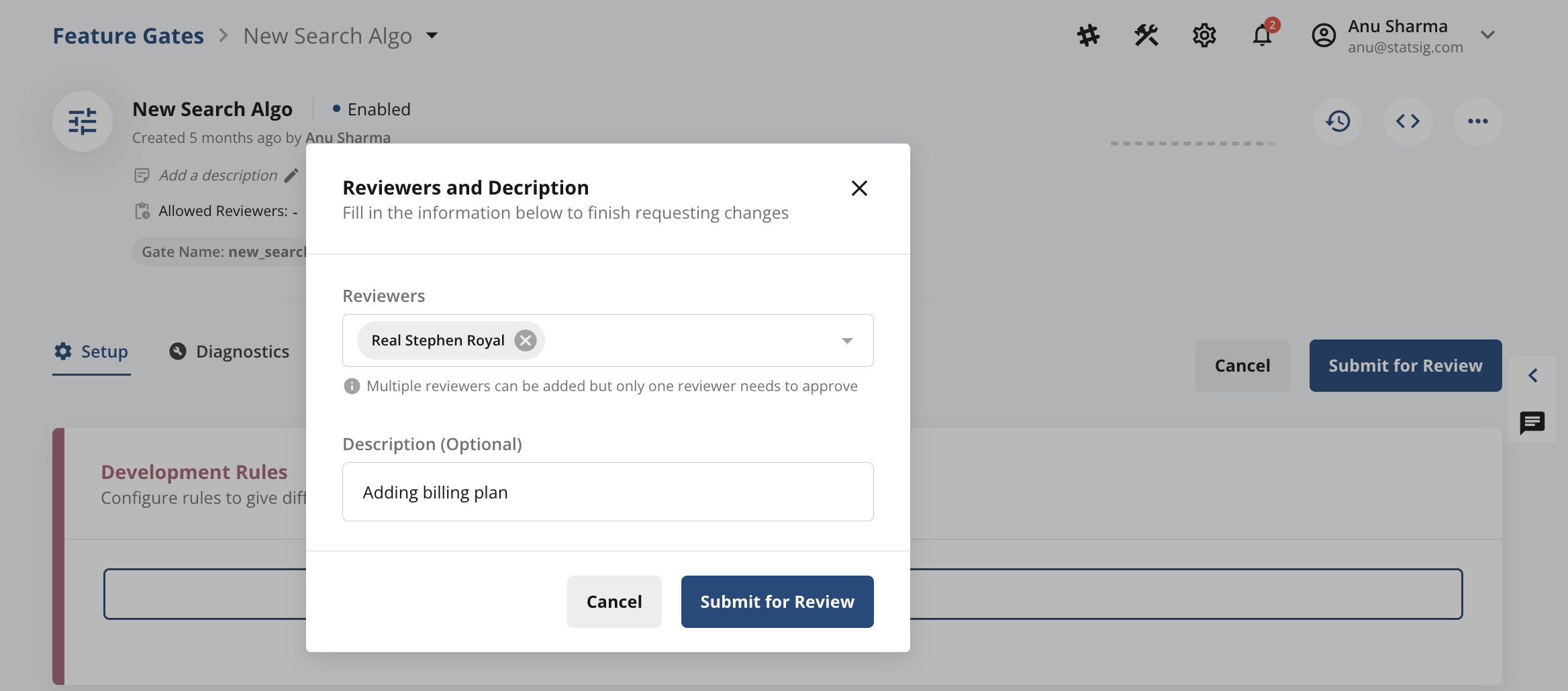
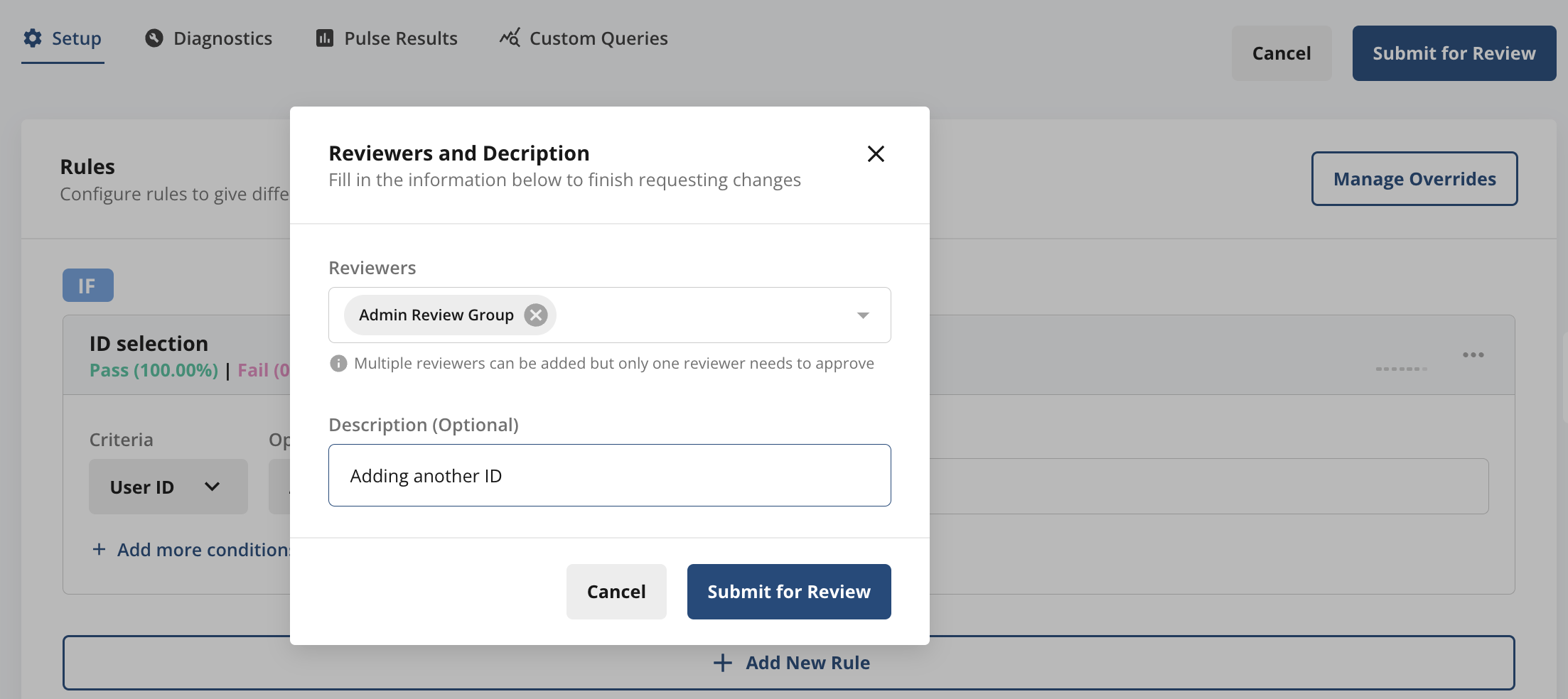
 * Now when you make any configuration changes, say to a feature gate or experiment, you'll be asked to **Submit for Review**; you can add reviewers when you submit the change for review
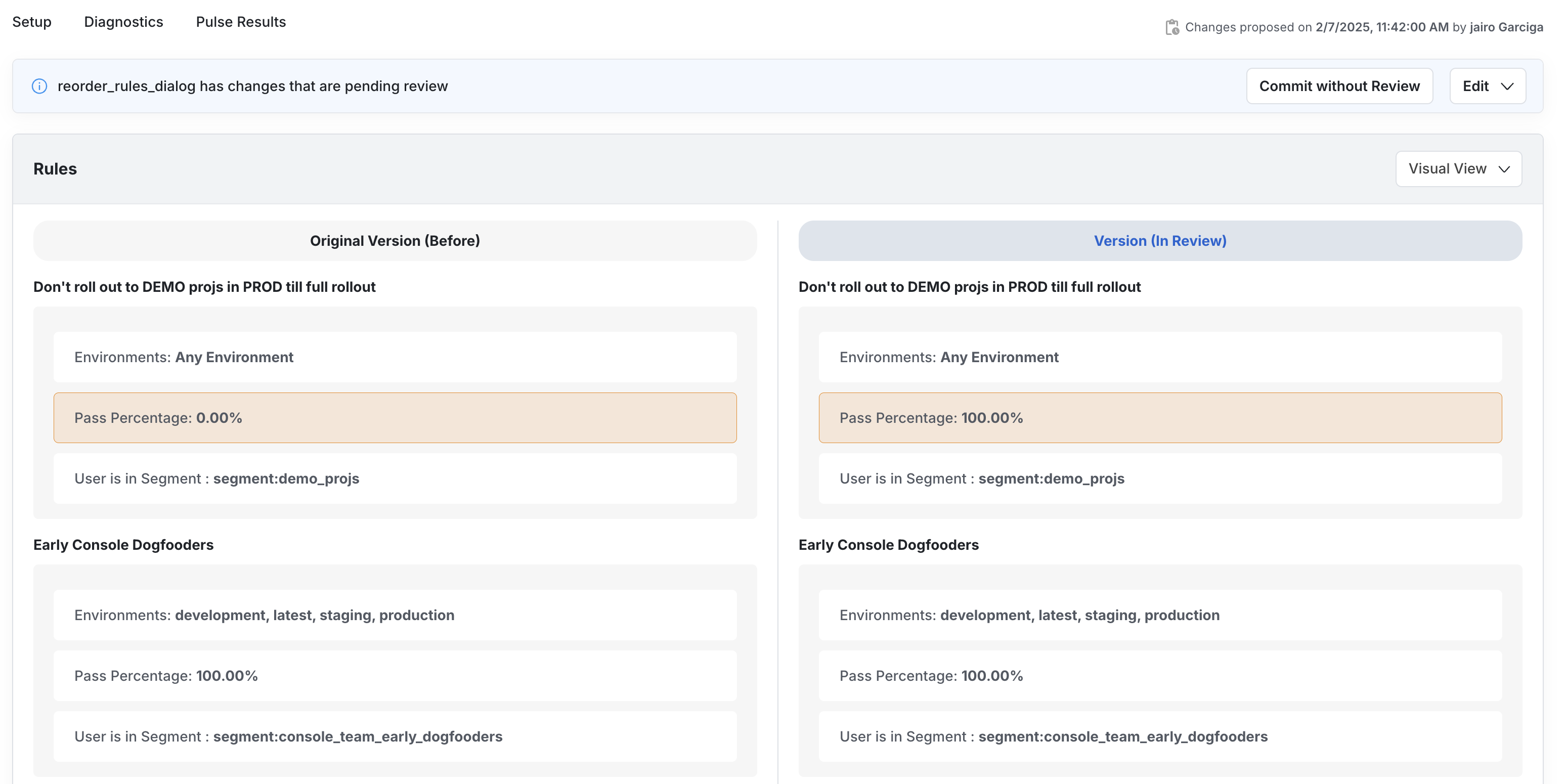
 * Reviewers will now see a notification on the Statsig console as shown below. When they click on **View Proposed Changes**, they will see a diff of the *current version* in production and *new version*. Reviewers can now **Approve** or **Reject** the submitted changes.

 ### Teams
To create a predefined group of reviewers, you can create Teams
### Teams
To create a predefined group of reviewers, you can create Teams
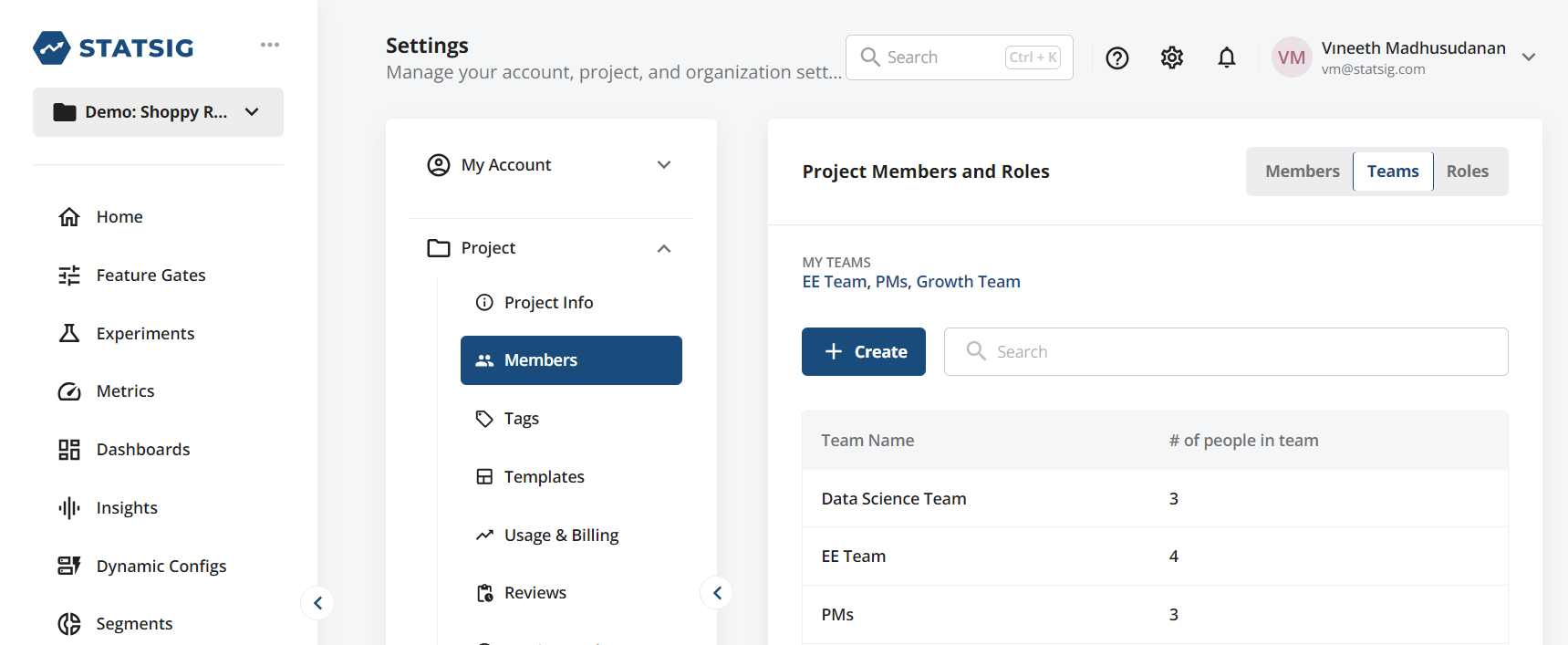 You can now use these predefined **Teams** when you submit any changes for review.
 ### Enforcing Team Reviews
You can restrict who can make changes to your Project by (a) turning on **Reviews Required** for your Project and (b) adding designated **Teams** or **Reviewers** when you create the Feature Gate or Experiment.
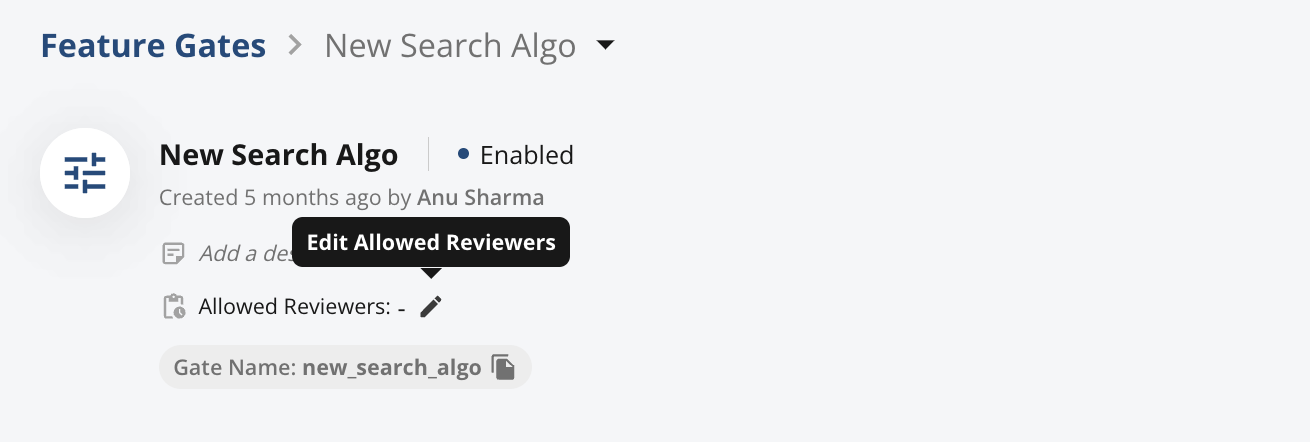
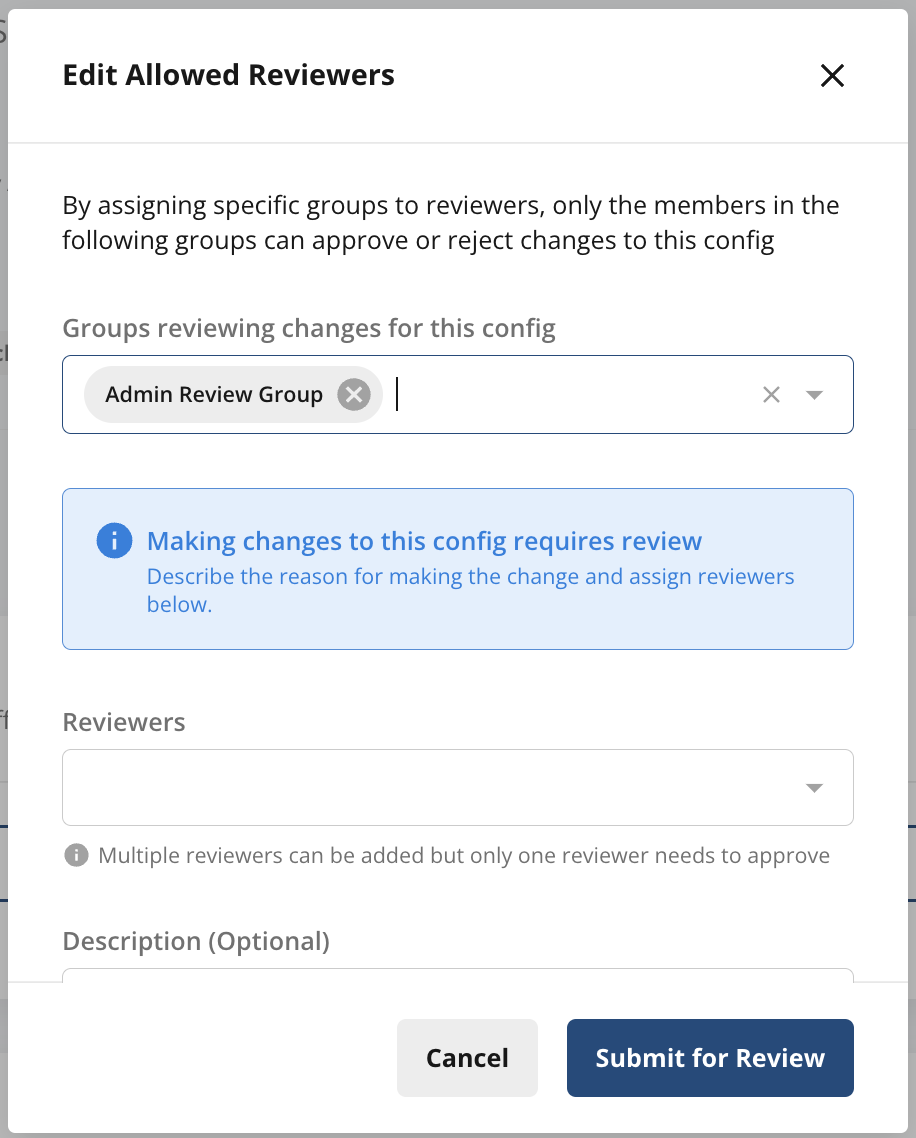
For (a), see section **Turning on Change Reviews for a Project** to turn on project-wide reviews. For (b), as an owner of a Feature Gate or Experiment, you can add designated **Teams** or **Reviewers** at any time as shown below. This ensures that only these designated groups or members can review and approve any subsequent changes. When another member now tries to edit these designated review groups/reviewers, this will require approval from currently designated reviewers.
### Enforcing Team Reviews
You can restrict who can make changes to your Project by (a) turning on **Reviews Required** for your Project and (b) adding designated **Teams** or **Reviewers** when you create the Feature Gate or Experiment.
For (a), see section **Turning on Change Reviews for a Project** to turn on project-wide reviews. For (b), as an owner of a Feature Gate or Experiment, you can add designated **Teams** or **Reviewers** at any time as shown below. This ensures that only these designated groups or members can review and approve any subsequent changes. When another member now tries to edit these designated review groups/reviewers, this will require approval from currently designated reviewers.
 ### Configuring Review Settings for Different Environments
Many teams build, test, and launch new features and experiments across multiple development environments. Statsig makes creating and using environments in feature launches easy via our [Environments support](/guides/using-environments#configuring-environments).
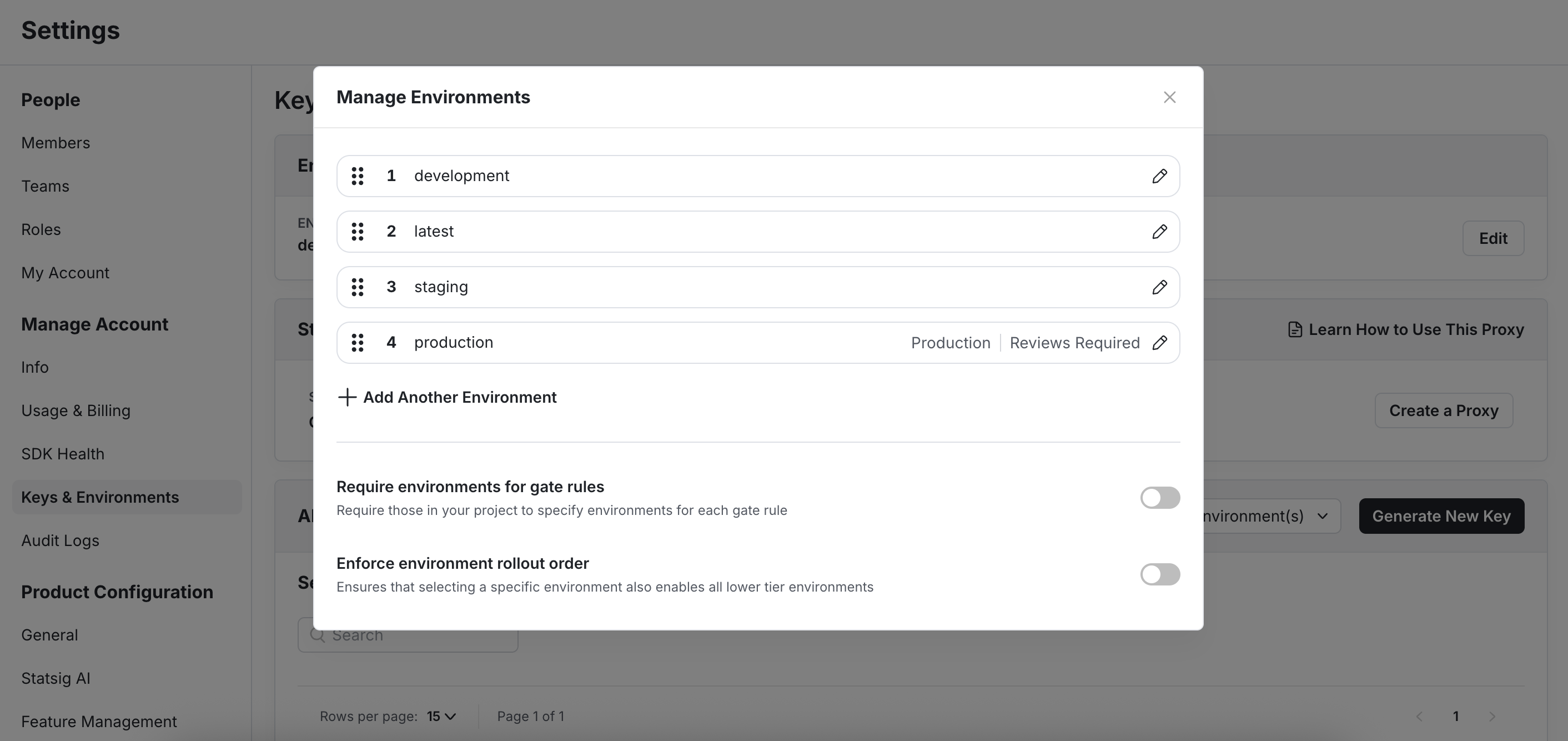
You can also configure which environments require reviews via your **Project Settings**. To do so, go to **Project Settings** --> **Keys & Environments** --> tap **Edit** on **Environments**.
By default if you have turned on "Reviews Required" for your Project, reviews will be required for Production, but not non-Production (lower) environments.
### Configuring Review Settings for Different Environments
Many teams build, test, and launch new features and experiments across multiple development environments. Statsig makes creating and using environments in feature launches easy via our [Environments support](/guides/using-environments#configuring-environments).
You can also configure which environments require reviews via your **Project Settings**. To do so, go to **Project Settings** --> **Keys & Environments** --> tap **Edit** on **Environments**.
By default if you have turned on "Reviews Required" for your Project, reviews will be required for Production, but not non-Production (lower) environments.

 #### Team-based Required Reviews per Environment
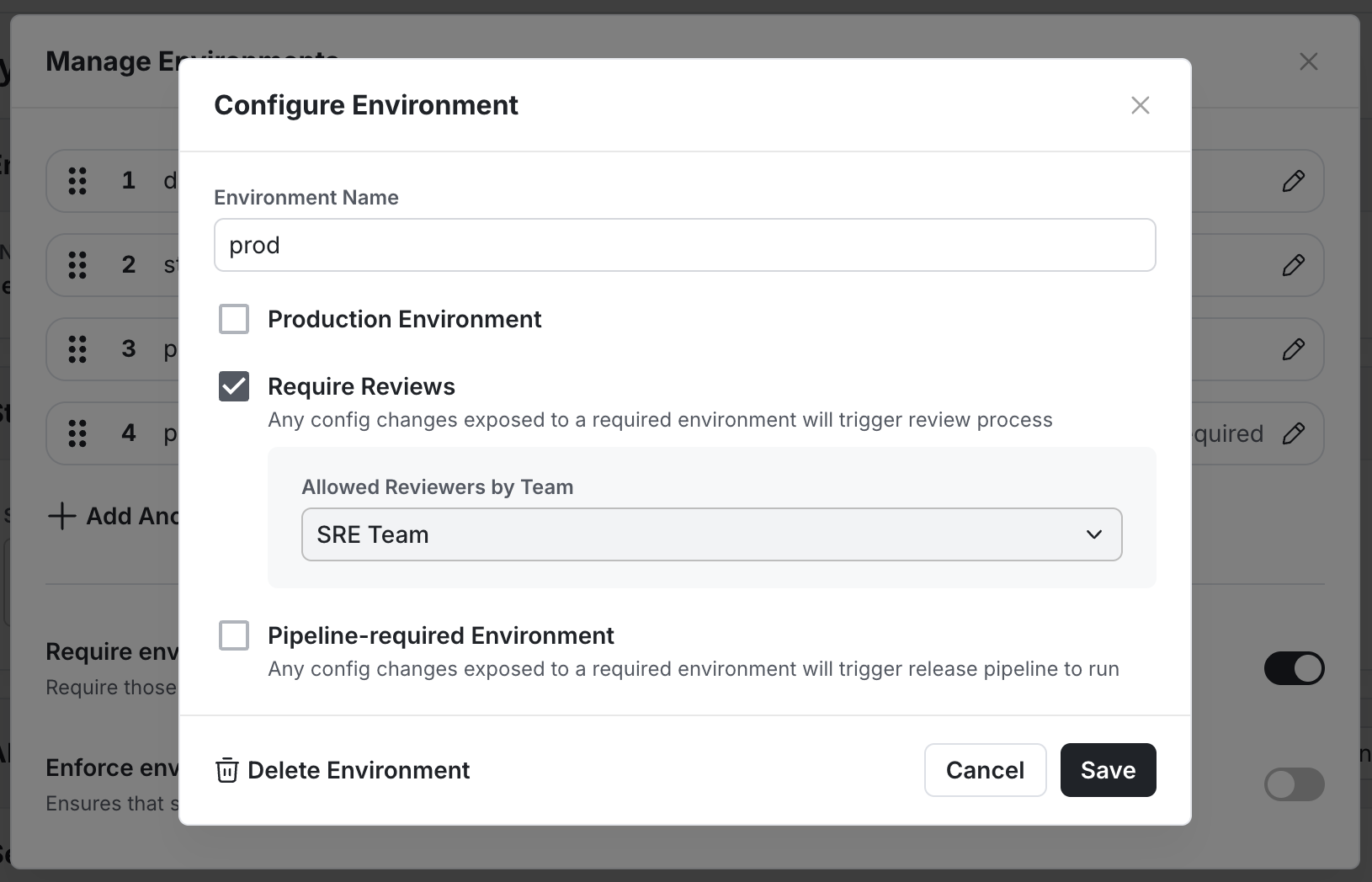
You can assign specific teams as reviewers for each environment. This ensures that only designated team members can approve changes for that environment.
#### Team-based Required Reviews per Environment
You can assign specific teams as reviewers for each environment. This ensures that only designated team members can approve changes for that environment.
 #### Code Freeze Use Case
During code freeze periods, you can prevent feature flags or configs from being deployed to production by assigning a dedicated code freeze team as the production reviewer. This ensures that only members of that team (such as your SRE team or designated code freeze owners) can approve production changes. Once the code freeze period ends, you can remove the team assignment to restore normal review workflows.
#### Code Freeze Use Case
During code freeze periods, you can prevent feature flags or configs from being deployed to production by assigning a dedicated code freeze team as the production reviewer. This ensures that only members of that team (such as your SRE team or designated code freeze owners) can approve production changes. Once the code freeze period ends, you can remove the team assignment to restore normal review workflows.